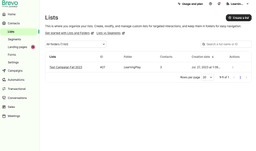
Marketing-CRM
Employer: LearningPlay AB
LearningPlay needed a simple Marketing-CRM that could gather data from multiple WordPress-sites. The data gathered that was needed was students and group leaders from the LMS-plugin LearnDash. This data should then be able to be used to create lists in an E-mail marketing platform and then send out e-mail campaigns to the recipients on a list. The e-mail marketing platform that was selected was Brevo, using their API to create lists and recipients.
Technology stack/frameworks:
- Backend/frontend: NextJS/React with Tailwind CSS
- Persistant storage: Serverless Postgresql using Prisma ORM
- Authentication: Next-Auth
- Hosting: Vercel
WordPress:
To be able to sync data to the Marketing-CRM, a custom WordPress-plugin was created that gathers all groups and students in a group that syncs to the Marketing-CRM using a NextJS API-route with a specified key sent as a header in the request.
Screenshots:
All data in the screenshots are from seeded faker-data, none of it is real.

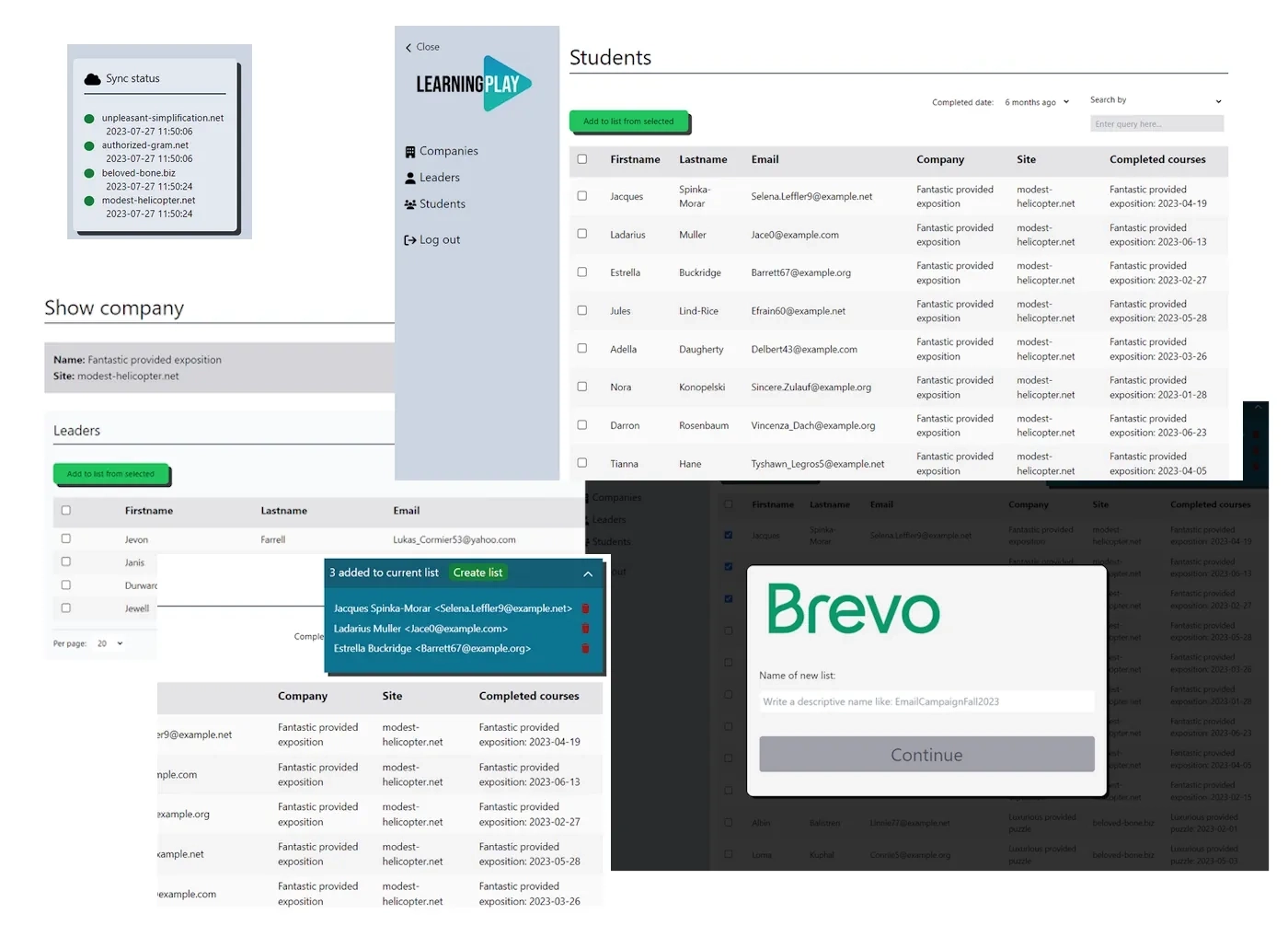
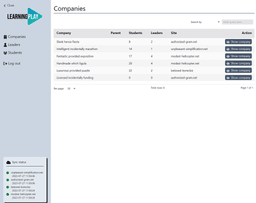
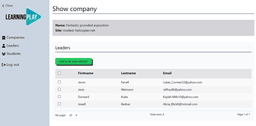
The CRM-system has a couple of pages ( or views you could say ) depending on which type of entity.

Displaying a single company with all data for that company:


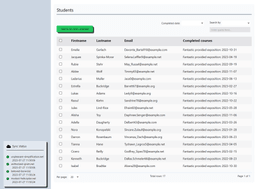
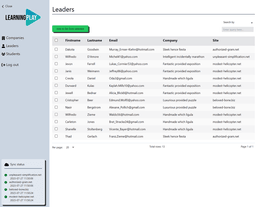
Displaying all the group ( ie. company ) leaders:

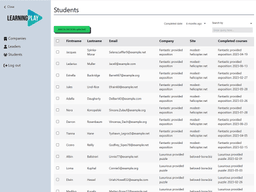
And then there is a page displaying all students ( which is basically the same as leaders except from the perspective/entity student. When displaying students there are some more options for filtering ( like completed courses in the last 6 months ):

To create a list you just to these steps:
- Select one or multiple columns in the table
- Press the button “Add to list from selected”
… and then a new list has been started. You can continue to add more rows from that page or go to another page in the table pagination. A popup i shown in the top right corner showing which rows that has been selected:

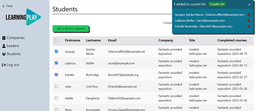
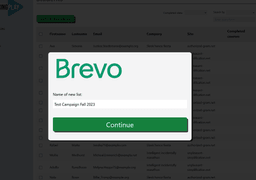
To create a list in Brevo you press the button “Create list” and a fullscreen-modal is shown where you first have to write the name of the new list that will be sent to Brevo:

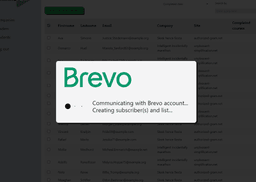
Finally when all requirements are met the new list with the recipients are sent to the Brevo API:

If you then login into the Brevo-account the created list with the recipients ( contacts ) are visible and you can design the email template to use for the campaign: